
Tweetify / Photo and video scheduling
How do you schedule an X post with a photo or video on iPhone?
A media post needs one extra review before it enters the queue. The image has to be the right one, the video must finish uploading, and the text should still make sense beside it.
The short answer
In Tweetify, start a post, add the photo or video from your iPhone, write the accompanying text, and wait for the media preview to finish loading. Then choose a date and time and review the item in Scheduled. Media scheduling is included with Tweetify Pro.
01 / Schedule the media post
Schedule the media post
- 01
Choose the media before the time
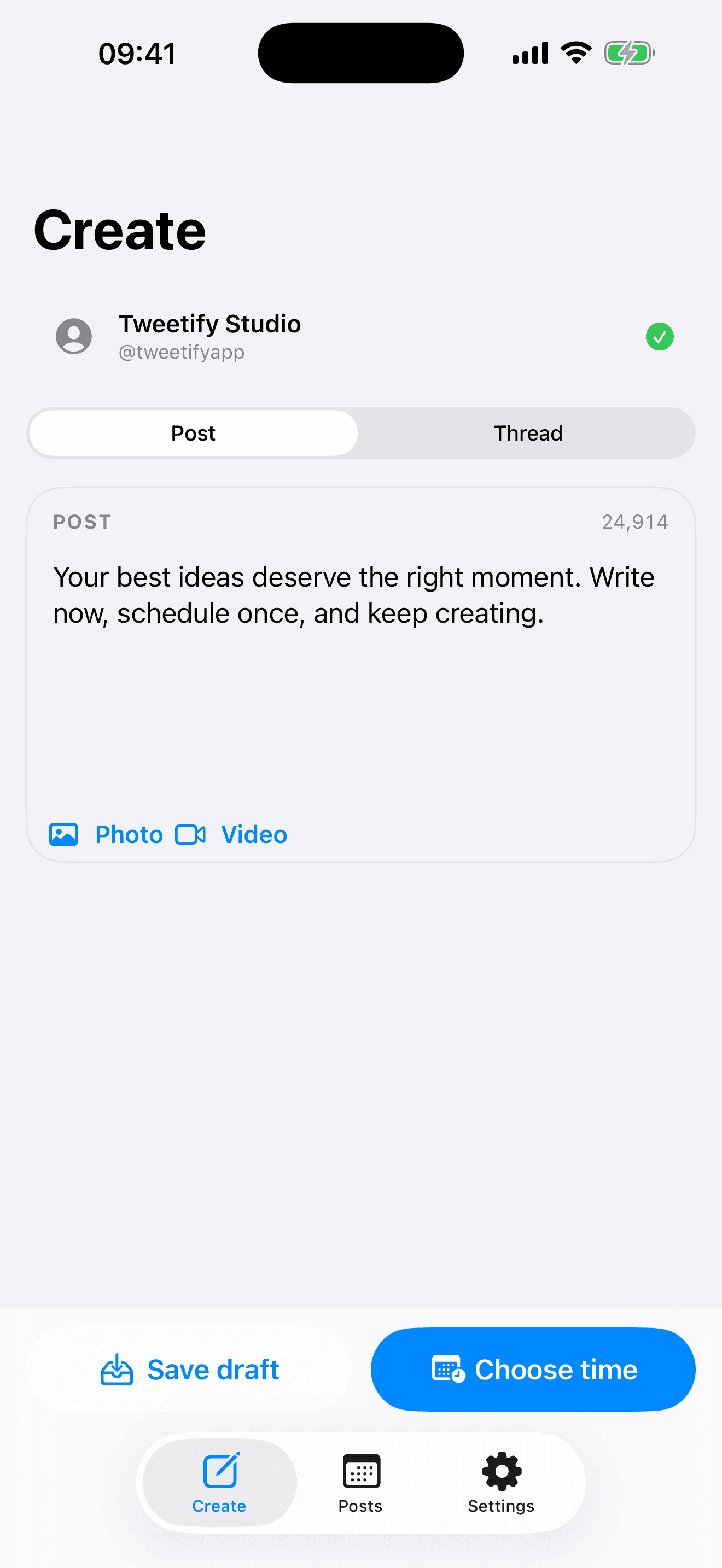
Open Write, create a post and select the photo or video from your library. Use the final asset rather than a temporary export, and wait until its preview appears before continuing.
- 02
Write for the image or video
Add the point that the media cannot communicate by itself. Keep the opening specific, add useful context, and check that names, links and image text are correct.
- 03
Schedule and check the queue
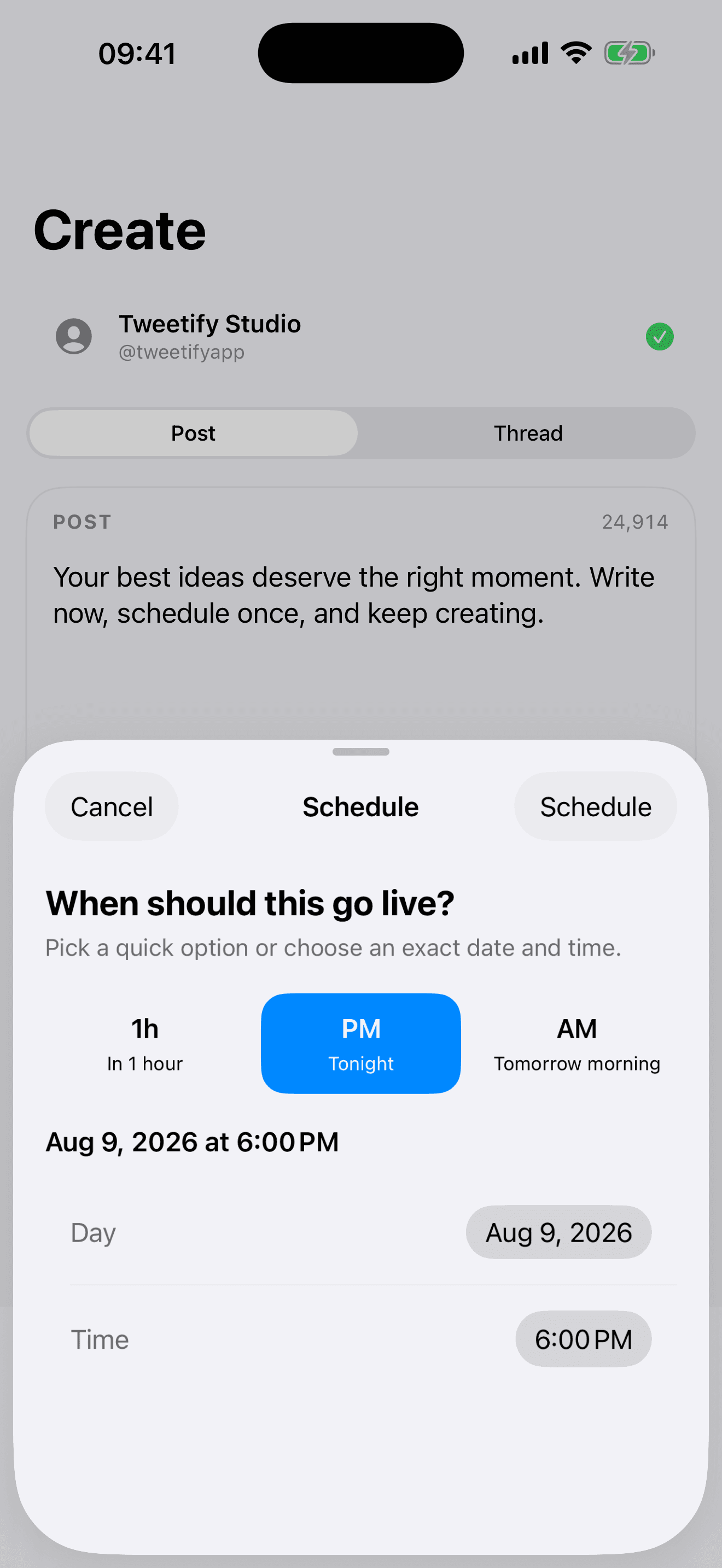
Choose a quick option or an exact date and time. After saving, open Scheduled and confirm the correct account, thumbnail, copy and local time are shown together.
02 / A better media check
A better media check
Use readable media
Crop for a phone screen and avoid tiny text. If the image contains important information, repeat the central point in the post and add an accessible description where the publishing surface supports it.
Let uploads finish
Do not assume a large video is ready because the text is saved. Keep the app open until the upload and queue confirmation complete, especially on a weak mobile connection.
Review in context
Look at the thumbnail and first line as one unit. A good visual should support the claim rather than repeat a generic headline.
03 / Photo and video scheduling questions
Photo and video scheduling questions
Can Tweetify schedule photos and videos to X?
Yes. Add the media while composing and schedule the completed post. This feature is part of Tweetify Pro.
Can I schedule several photos in one post?
Use the media picker shown in the current app and stay within the formats and media count accepted by X. Review every selected item before saving.
Why is my video taking longer to schedule?
Videos are larger than text or photos and need time to upload. Network speed and file size can delay the final queue confirmation.
Does my iPhone need to remain open until publication?
No. Once Tweetify confirms the item is queued, the service publishes at the selected time. Keep the app open only until the media upload finishes.
04 / Sources
Sources
Tweetify for iPhone
Give the visual a time, not just a caption.
Prepare and schedule photo or video posts from your iPhone.
 App Store
Scan to download Tweetify
Tweetify for iPhone